How to convert a PDF to EPUB: quick answer
To convert a PDF to EPUB, upload the PDF to a converter that rebuilds the text as flowing content rather than wrapping page images, then download the .epub and send it to your reader. The result reflows to any screen size and font setting, keeps chapter structure and the table of contents, and drops the original's fixed page geometry — which is the entire point.
Whether that is an improvement or a disaster depends almost entirely on what kind of PDF you started with. This guide is mostly about telling those two cases apart before you waste time.
The actual problem: a PDF has pages, a phone has a screen
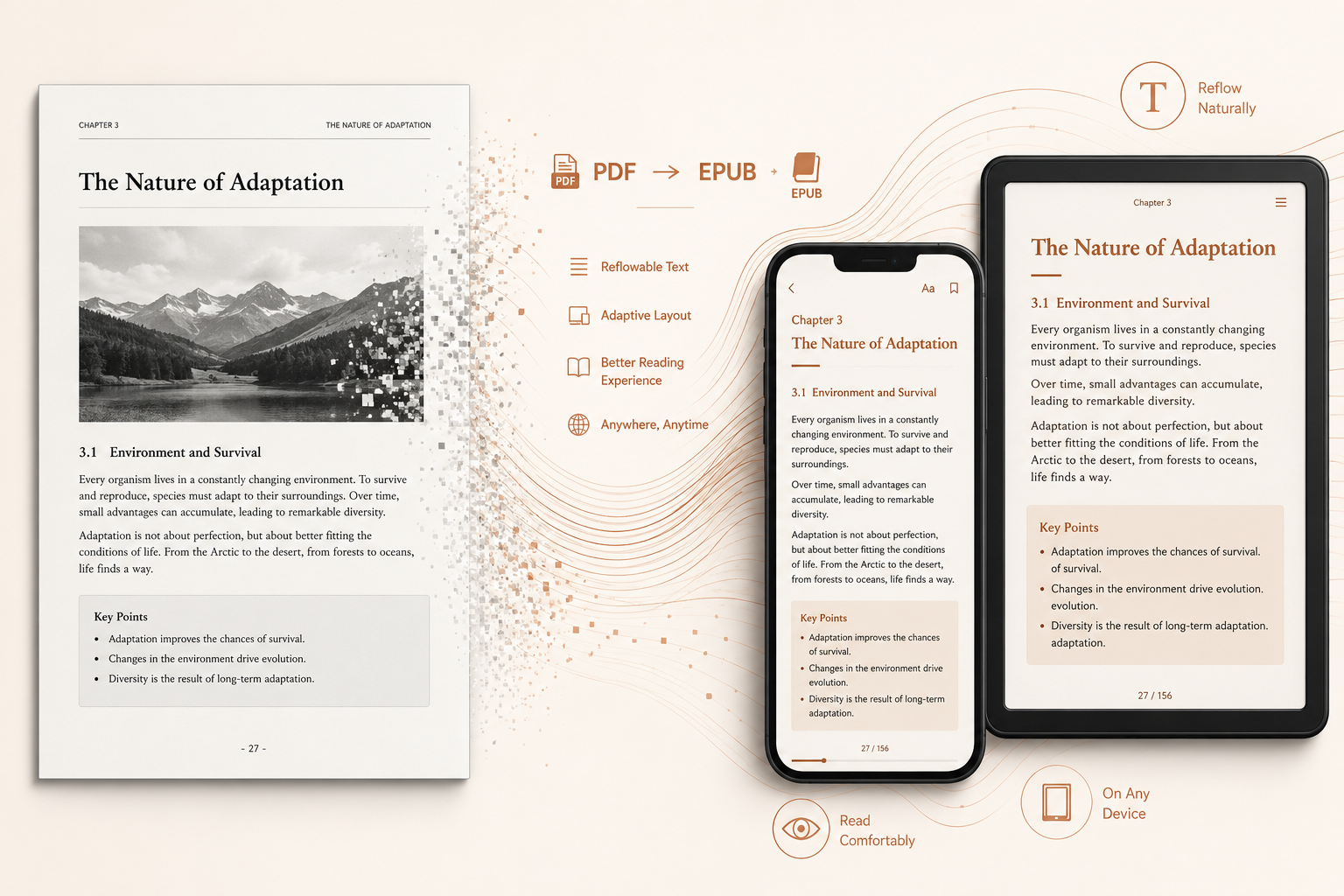
A PDF is a fixed-layout format. Every line break, column and page break was decided once, for a specific paper size — usually A4 or US Letter — and is then frozen.
On a 6-inch phone screen, that frozen layout is the problem. You get one of two bad options: zoom out until the text is unreadably small, or zoom in and pan sideways on every single line. Neither is reading.
EPUB is a reflowable format. The text has no fixed line breaks; your reader decides where lines fall based on your screen and your chosen font size. Chapter structure and the table of contents are preserved as navigation rather than as page numbers.
So converting PDF to EPUB is not a cosmetic change. You are deliberately throwing away the page geometry in exchange for text that adapts. That trade is excellent for some documents and ruinous for others.
Which PDFs convert well, and which do not
| Type of PDF | Converts to EPUB | Why |
|---|---|---|
| Novels, essays, biographies | Excellent | Single-column running prose is exactly what reflowable text was designed for |
| Non-fiction and business books | Very good | Headings and paragraphs map cleanly to EPUB structure |
| Reports with occasional figures | Good | Text reflows; images are placed inline between paragraphs |
| Textbooks with sidebars and boxes | Mixed | Sidebars become separate blocks and may land away from the passage they annotate |
| Two-column academic papers | Poor | Reading order can be recovered, but dense figures, tables and equation numbering degrade badly |
| Documents that are mostly tables | Poor | Wide tables have nowhere to go on a phone screen; they either scroll awkwardly or wrap |
| Magazines, brochures, slide decks | Bad | The design is the content — reflowing destroys the thing you wanted to keep |
| Sheet music, engineering drawings, forms | Do not | Fixed geometry is load-bearing; convert nothing, read the PDF as-is |
The rule of thumb: if you could read the document out loud in a straight line from start to finish and lose nothing, it will convert well. If you need your eyes to jump around the page to understand it, it will not.
The trap: "EPUBs" that are just images in a wrapper
Some free converters produce an EPUB where every page is a full-page image of the original PDF page. The file opens in your reader and technically has the right extension, but nothing has actually changed.
You can spot one in about five seconds:
- Try to change the font size. If nothing happens, it is a picture.
- Try to select a word. If you cannot, it is a picture.
- Try the reader's search function. If it finds nothing, it is a picture.
Such a file is worse than the original PDF, because you have added a conversion step and gained nothing. A real conversion produces selectable, searchable, resizable text — that is the only thing worth calling a PDF-to-EPUB conversion.
Scanned books: OCR happens first, and it shows
If your source is a scanned book — photographed pages, no text layer — the text has to be recognised by OCR before there is anything to reflow.
Expect two things. First, recognition errors will be present and they will be invisible in a way PDF errors are not: in a scan you can always see the original ink, while in an EPUB you only see what the OCR believed it read. Second, footnotes, running heads and page numbers from the scan sometimes survive into the body text, because they look like ordinary text to a recogniser.
Proofread the first and last few pages of each chapter — that is where the artefacts cluster. If your scan is a mixed-layer file, our explainer on double-layer PDFs covers how to check what is actually in the file before converting.
What EPUB does not preserve
Worth stating plainly, since this is where the disappointment usually comes from:
- Page numbers. They stop being meaningful — there are no pages. Citing "page 214" of an EPUB does not work.
- Exact typography. Fonts, kerning and hand-tuned line breaks are all replaced by your reader's own rendering.
- Multi-column layout. Flattened to a single flow, always.
- Fixed figure placement. An image that sat precisely beside a paragraph now sits between paragraphs.
- Wide tables. They remain a genuinely unsolved problem on small screens in every format.
If any of those are essential, keep the PDF. If you want an editable document instead of a readable one, PDF to Word is the better route; if you want plain text for a note system or a RAG pipeline, see PDF to Markdown.
Converting a PDF to EPUB, step by step
Step 1: Check that the PDF is a good candidate
Before uploading, ask whether the document reads in a straight line. Novels, reports and long-form non-fiction: go ahead. Two-column papers, magazines and table-heavy documents: expect to be disappointed, and read the PDF as-is instead.
Step 2: Upload the PDF and convert
Open the PDF to EPUB converter and drop in a file up to 100 MB and 100 pages. You need to be signed in, since conversions and download links are tied to your account. The conversion costs 1 translation credit per page, taken from your free monthly quota first — 500 free pages a month once you register — and credits are refunded automatically if a conversion fails.
Step 3: Check it on a real device before you trust it
Download the .epub and open it in your actual reader — Apple Books, Kindle, KOReader, whatever you use. Change the font size once to confirm the text really reflows, then skim the chapter openings for OCR artefacts. Conversion records stay in the list for 24 hours, so you can close the page and come back.
Frequently asked questions (FAQ)
Will the converted EPUB have a working table of contents?
Chapter structure is rebuilt from the document's heading hierarchy, so books with consistent chapter titles get usable navigation. PDFs with no visual heading structure at all — where chapters begin with the same typography as body text — give the converter nothing to work from, and the result is one long flow.
Can I read the converted EPUB on a Kindle?
Yes. Modern Kindles accept EPUB directly through Send to Kindle, and Amazon converts it on their side. Apple Books, Google Play Books, Kobo, Moon+ Reader and KOReader all open EPUB natively without any extra step.
Why does my converted academic paper look wrong?
Two-column papers are the hardest case for reflowable formats. Even when the reading order is recovered correctly, equation numbering, figure captions and cross-references lose the spatial relationships they relied on. For papers, reading the original PDF on a tablet usually beats any conversion.
Is the text in the EPUB searchable and selectable?
Yes — the conversion produces real text, not page images. If you have used a tool whose output cannot be searched, selected or resized, it wrapped page pictures in an EPUB container rather than converting the document.
How much does converting a PDF to EPUB cost?
1 translation credit per page, drawn from the same balance as document translation and taken from your free monthly quota first, which is 500 pages a month for registered accounts. Failed conversions are refunded automatically. You need to be signed in before uploading.
What are the file limits, and how long are the files kept?
Up to 100 MB and 100 pages per file; longer documents should be split first with the PDF splitter. Conversion records and download links remain available for 24 hours, after which the files are removed from the server.