How do I translate text online?
To translate text online, paste or type it into a text translator, pick the target language (the source language can be detected automatically), and check whether the run is free or how many credits it will use before you click Translate. Short texts come back on the spot; long texts run as a task you can track, cancel while queued, and download.
That is the whole workflow. The rest of this guide explains the parts that usually cause confusion: how length is counted, where the free limit sits, what changes once a text gets long, and what to check before you send the translation anywhere.
Paste the text or upload the document?
There are two ways to get words translated, and they solve different problems. Pasting text is the quick route when the words are already on your screen: an email, a chat message, a paragraph from a web page, your own notes. You do not need to save anything to a file first, and the result is plain text you can copy straight back into wherever it is going.
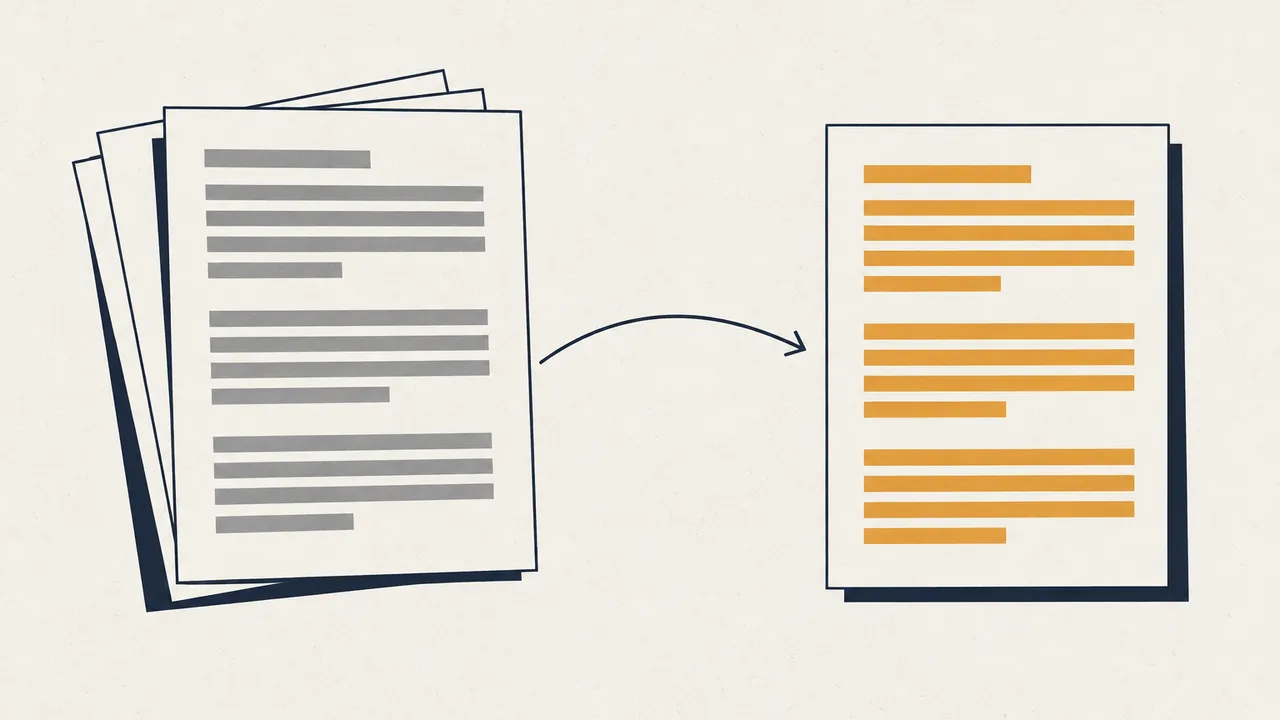
Uploading a document is the right route when the file itself matters. A contract with numbered clauses, a slide deck, a spreadsheet or a PDF with tables all carry layout that plain text cannot hold. If you copy the words out of such a file and paste them into a text box, you lose the headings, table cells and page structure, and you then have to rebuild them by hand. Document translation keeps that structure and gives you a translated file back.
| Paste text | Upload a document | |
|---|---|---|
| Best for | Emails, messages, web paragraphs, notes | PDF, Word, PowerPoint, Excel and other files |
| What you get | Plain translated text to copy, or a TXT for very long results | A translated file |
| Layout | Not kept (there is none to keep) | Kept as far as the format allows |
| Setup | Nothing to prepare | The file must be in a supported format |
| Good sign you picked right | You were going to copy the result into another app anyway | You need to hand over a file that looks like the original |
There is also a middle case. If the text already lives in a .txt file, you do not need to open it and copy everything out: the TXT file translator takes the file directly. The paste-in text translator is for text you have on your clipboard or want to type.
How length is counted, and why the free limit has two numbers
Online translators do not all count the same way, so it is worth knowing which rule you are under. On Belin Doc, text is counted the same way as TXT file translation. Chinese and Japanese-type text is counted per character. English-type text, where words are separated by spaces, is counted per word. The server calculates this billable count and shows it below the input box, and that figure is the one that counts, not your own estimate.
Free translation needs both conditions to hold at once: the billable count is 500 or less, and the original text is no longer than 1,500 raw characters. The two numbers exist because the billable count behaves very differently across languages. In Chinese, 500 billable characters is roughly 500 characters on the page, so the first limit is the one that matters. In English, a word is several letters long, so 500 words will usually run well past 1,500 characters. For English and similar languages, the character cap is typically the one you hit first.
You do not have to work this out yourself. As you type, the page shows either "Free this time" or the estimated number of credits. If you are just over the line and want to stay free, trimming a quoted signature or a repeated block is often enough.
Each run also has upper limits: up to 100,000 billable words or characters, and no more than 300,000 raw characters. A text beyond that has to be split into separate submissions.
What changes when the text is long
Once a text is past the free limits, it no longer comes back instantly. It is submitted as a task on the same page and uses the same translation credits as document translation. The page shows the estimate before you submit and the credits used afterwards.
A task can wait in a queue. While it does, you can see your position and an estimated wait, and then the progress once translation starts. If you change your mind while the task is still queued, you can cancel it, and credits are returned according to the refund rules. If a task fails, the credits are refunded automatically, so a failed run does not cost you anything.
Very long results do not always fit comfortably in the result panel. When that happens, the page offers the translation as a TXT download instead. This is also the practical way to handle a long text you want to edit later: download the TXT, open it in your editor, and review it there rather than scrolling inside a browser box.
A general tip that applies to any translator: if you are pasting something very long, such as a book chapter or a full report, consider whether it really is text. If it came from a formatted file, translating the file itself will usually save you the clean-up work described in the first section.
Choosing a model and a translation style
The default model is enough for most everyday texts. Signing in lets you choose other models from the model list, and some of those models require a membership.
Translation style is a separate setting. A chosen translation style applies only to long-text translations; free runs always use the default style. So if you pick a style and your text qualifies as free, the result will still come back in the default style. This is shown on the page, but it is easy to miss when you are in a hurry.
Which model is right depends on the text more than on any ranking. As a general pattern, short, plain messages translate well almost anywhere, while dense technical, legal or literary writing is where differences between models tend to show. If a text matters, a sensible approach is to translate a representative paragraph first, read it carefully, and only then submit the full text.
What to check before you use the translation
Machine translation has become fluent enough that errors often read naturally, which is exactly why they are easy to miss. A quick review in this order catches most problems.
Start with names and terms. Product names, people's names, company names and field-specific terms are the most common places for a translator to guess. If a term must stay in the source language, check that it did.
Next, look at numbers, dates and units. Figures should be identical to the source, and date formats and decimal separators should match what the reader expects.
Then check lists and formatting. Pasted text can include bullet characters, numbered lines and line breaks. Make sure the list items are still separate and in the original order, and that nothing was merged into one long paragraph.
Finally, read the text once for tone. A casual chat message and a formal email need different registers, and the translation should sound like something the sender would actually write.
Privacy and history: what is kept, and for how long
After you translate, the record appears under Recent tasks on the text translator page. All records are kept for 24 hours, and you can delete any record yourself before then. Deleting a long-text translation record also removes the task and its download.
This history is separate from your document translation history, so pasted texts do not mix with your uploaded files. Because records expire after 24 hours, copy or download anything you want to keep. For sensitive material, the general advice for any online tool holds: paste only what needs translating, and delete the record when you are done.
How to translate text online on Belin Doc, step by step
Step 1: Paste or type your text
Open the text translator and paste your text into the input box, or type it. Below the box you will see the billable count and either "Free this time" or the estimated credits.
Step 2: Choose the languages and a model
Select the target language. Choose the source language yourself, or leave it on automatic detection. Signed-in users can pick another model from the list, and some models require membership. Translation style only affects long-text translations.
Step 3: Translate and follow the progress
Click Translate. A free run shows the result in the panel on the same page. A longer text is submitted as a task: you will see the credits used, the queue position, an estimated wait and the progress. You can cancel while it is still queued.
Step 4: Review, copy or download the result
Run the checks above, then copy the translation, or download it as TXT if it is too long to display. You can reopen the record from Recent tasks for 24 hours.
Frequently asked questions (FAQ)
Is it free to translate text online with Belin Doc?
Yes, when the text is within both free limits: a billable count of 500 or less and no more than 1,500 original characters. The page shows "Free this time" or the estimated credits before you submit. Free runs are rate-limited, so very frequent submissions may be paused briefly.
How much text can I translate at once?
Up to 100,000 billable words or characters per run, with a maximum of 300,000 raw characters. Split anything longer into separate submissions.
Are words or characters counted?
It depends on the language. Chinese and Japanese-type text is counted per character, and English-type text per word, the same as TXT file translation. The count shown below the input box comes from the server and is the one used for billing.
How long is my translation history kept?
All records in Recent tasks are kept for 24 hours and can be deleted earlier.
Should I paste text or translate the whole document?
Paste text when you only need the words, such as an email or a message. If the layout matters, translate the file itself: use document translation for PDF, Word and similar files, or the TXT file translator for a .txt file.