How to convert a PDF to Word: quick answer
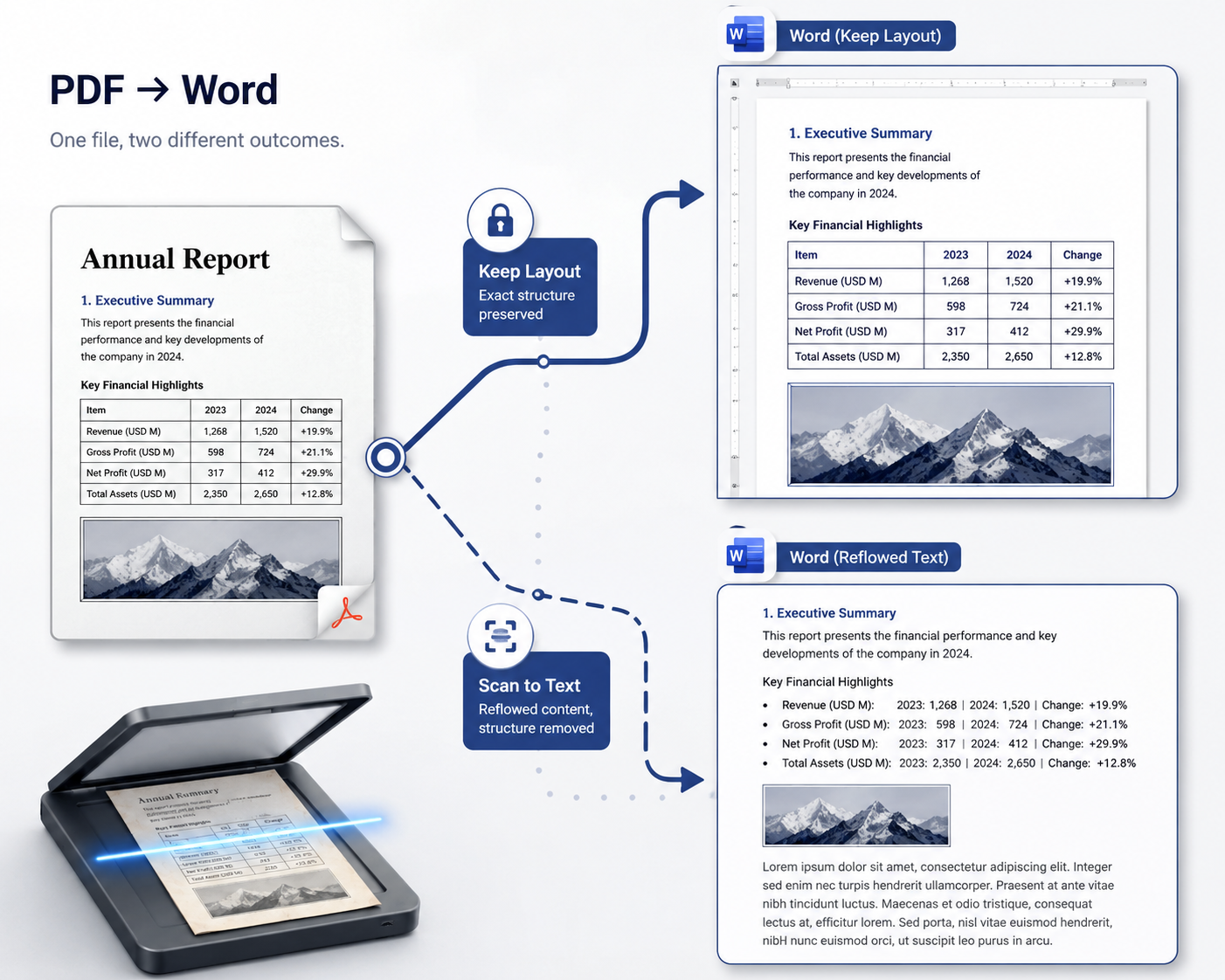
To convert a PDF to Word, upload the PDF to a converter that detects whether the file has a text layer, then download the .docx. If the PDF has real text, the converter rebuilds text blocks, tables and images so the page looks close to the original. If it is a scan, OCR reads the text first and you get editable paragraphs rather than a visual match.
Those are two genuinely different outcomes from the same button, and knowing which one you are about to get explains most of the frustration people have with PDF-to-Word tools.
The single question that determines your result
Every PDF falls into one of two categories, and they convert completely differently.
A digital PDF was exported from Word, InDesign, LaTeX or a browser. It contains actual text objects with fonts and coordinates. The converter knows exactly what every character is; the work is figuring out which characters form a paragraph, which form a table cell, and where the images sit.
A scanned PDF is photographs of paper. There are no characters in the file at all — just pixels that look like characters to you. Before anything can be converted, the text has to be recognised, and recognition is a probabilistic process that returns words with no formatting attached.
Belin Doc's PDF to Word converter samples the first three pages to decide which path to take, then behaves accordingly:
| Digital PDF (has text layer) | Scanned PDF (no text layer) | |
|---|---|---|
| Method | Layout-preserving reconstruction | OCR, then reflow |
| Text blocks | Rebuilt in position | Recovered as flowing paragraphs |
| Tables | Rebuilt as real Word tables | Often become plain paragraphs |
| Images | Kept and placed | Kept, but placement is approximate |
| Visual result | Close to the original page | Readable and editable, not a visual match |
| Main risk | Text boxes that are awkward to edit | Recognition errors you cannot see |
If you take one thing from this article: a scan will never come back as a pixel-perfect Word document, from any tool. What you get is editable text. That is the honest ceiling, and vendors that promise otherwise are describing the digital-PDF case and hoping you do not notice.
What "layout preserved" really means in a .docx
Even in the good case, reconstruction involves choices, and it helps to know what they are before you open the file and wonder why editing feels strange.
Paragraphs are rebuilt, not copied. The converter merges lines back into paragraphs by looking at line spacing and indentation. Hyphenated words broken across lines are normally rejoined. Where a paragraph break was ambiguous, you may find one paragraph split in two.
Tables become real Word tables when they can be. Ruled tables convert reliably. Borderless tables — the ones held together only by alignment — are harder, and complex merged-cell headers are where most conversions lose fidelity.
Some elements arrive as text boxes. Content that sat in an unusual position — a pull quote, a sidebar, a caption floating beside a figure — is often placed in a Word text box to keep it where it was. Text boxes look right and edit awkwardly: they do not reflow with the surrounding text.
Fonts fall back. If the PDF used a font you do not have installed, Word substitutes something similar and line lengths shift slightly. This is normal and usually harmless, but it is the most common reason a converted document looks "almost right".
Headers, footers and page numbers may land in the body text rather than in Word's real header and footer areas.
Why the output is .docx and not .doc
The output is .docx, the Office Open XML format Word has used since 2007 — not the older binary .doc.
This is worth stating because the two are frequently confused, and it also runs in the other direction: if you are trying to translate a legacy .doc file elsewhere on the site, you will be asked to save it as .docx first. .docx opens in Microsoft Word, Google Docs, WPS Office, LibreOffice and Pages without a converter.
What to check before you start editing
Five minutes of checking saves an hour of confusion. In rough order of how often things go wrong:
- Tables. Click inside one. If the cursor moves between cells, it is a real table. If the whole thing selects as a picture, it did not convert.
- Numbers, if the source was a scan. OCR confuses
0/O,1/l,5/Sand decimal separators. In a financial document, check the figures before anything else. - Text boxes. Click a paragraph that looks oddly placed. If it selects with a border and handles, it is a text box and will not reflow with the rest.
- Page count. A converted document is often a page or two longer than the original because of font substitution — expected, not an error.
- Reading order. If the source had columns or sidebars, skim to confirm the paragraphs are in the sequence you expect.
For scans specifically, our guide to fixing OCR errors in scanned PDFs covers the error patterns worth searching for systematically.
When you should not convert to Word at all
Converting is the right move when you need to edit the content. It is the wrong move for several common goals:
- You just want to read it on a phone. Word documents reflow badly on small screens. Convert to EPUB instead.
- You want the content in a notes app or a RAG pipeline. Markdown is a far better target than
.docx. - You want to change a couple of words. Editing the PDF directly is faster and preserves the layout exactly.
- You need a translated version. Do not convert then translate — that compounds two lossy steps. Translate the PDF directly with the PDF translator, which keeps the original layout.
- The document is a form, a drawing or sheet music. Fixed geometry is load-bearing; conversion will damage it.
Converting a PDF to Word, step by step
Step 1: Work out which kind of PDF you have
Open the PDF and try to select a sentence with your cursor. If the text highlights, it is a digital PDF and you should expect a close visual match. If nothing highlights — or the whole page selects as one block — it is a scan, and you should expect editable text rather than a visual match.
Step 2: Upload and convert
Drop the file into the PDF to Word tool. Limits are 100 MB and 100 pages; files over 100 pages are rejected at submission rather than failing later. You need to be signed in. Conversion costs 1 translation credit per page, taken from your free monthly quota first — 500 free pages a month once you register, drawn from the same balance as document translation. Scanned pages go through OCR without touching your separate OCR allowance, and failed conversions are refunded automatically.
Step 3: Open the .docx and run the five checks
Long and scanned documents take longer, because each page is analysed on its own — you can close the tab and come back, since conversions stay listed for 24 hours. When the file is ready, download it and run the five checks above before you start real editing.
Frequently asked questions (FAQ)
Will the converted Word file look exactly like the PDF?
For a digital PDF with a real text layer, it comes close: text blocks, tables and images are rebuilt in position. For a scanned PDF it will not, because OCR returns words without formatting and the document is reflowed rather than reconstructed. Minor differences in line breaks are normal in both cases when the original fonts are not installed on your machine.
Can I convert a scanned PDF to an editable Word document?
Yes — scanned PDFs are run through OCR and you get editable text. What you do not get is a visual replica of the scan, and recognition errors will be present, so proofread numbers and proper nouns before relying on the file.
Do tables survive the conversion?
Tables with visible ruled borders usually convert into real, editable Word tables. Borderless tables and complex merged-cell headers are the weak spot. Click inside a table after converting: if the cursor moves cell to cell, it converted properly.
Is the output .doc or .docx?
It is .docx — the modern Office Open XML format — which opens in Microsoft Word, Google Docs, WPS Office and LibreOffice without any extra converter.
How much does converting a PDF to Word cost?
1 translation credit per page, taken from your free monthly quota first, which is 500 pages a month once you register and is shared with document translation. Scanned pages do not consume your separate OCR allowance, and if a conversion fails the credits are returned automatically. You need to be signed in before uploading.
What if my PDF has more than 100 pages?
Files over 100 pages are rejected when you submit, so nothing is charged and no time is wasted. Split the document first with the PDF splitter and convert each part separately.