The Problem: Your PDF Looked Fine, but the Translation Is Garbled
You upload a PDF that opens perfectly on your screen—clean text, neat layout, no warnings. But the moment you translate it, the result is a mess: letters pile on top of each other, every line looks doubled, and the page becomes unreadable.
If that sounds familiar, you're almost certainly dealing with a double-layer PDF.
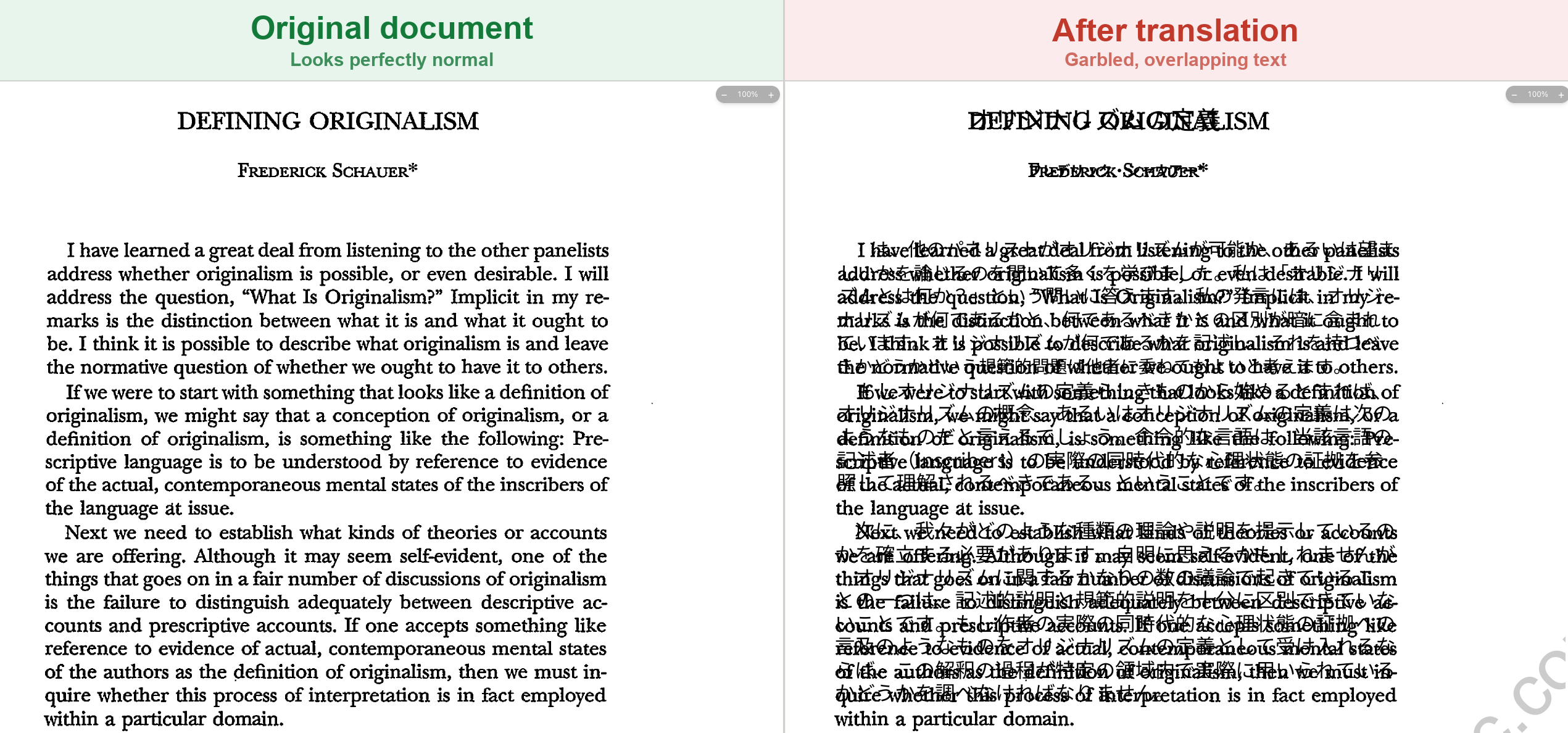
The image above says it all: on the left is the original document, which looks perfectly normal. On the right is the same file after translation—the text has split into overlapping, ghosted characters. This isn't a bug in the translation model. It's a structural problem with the file itself.
What Is a Double-Layer PDF?
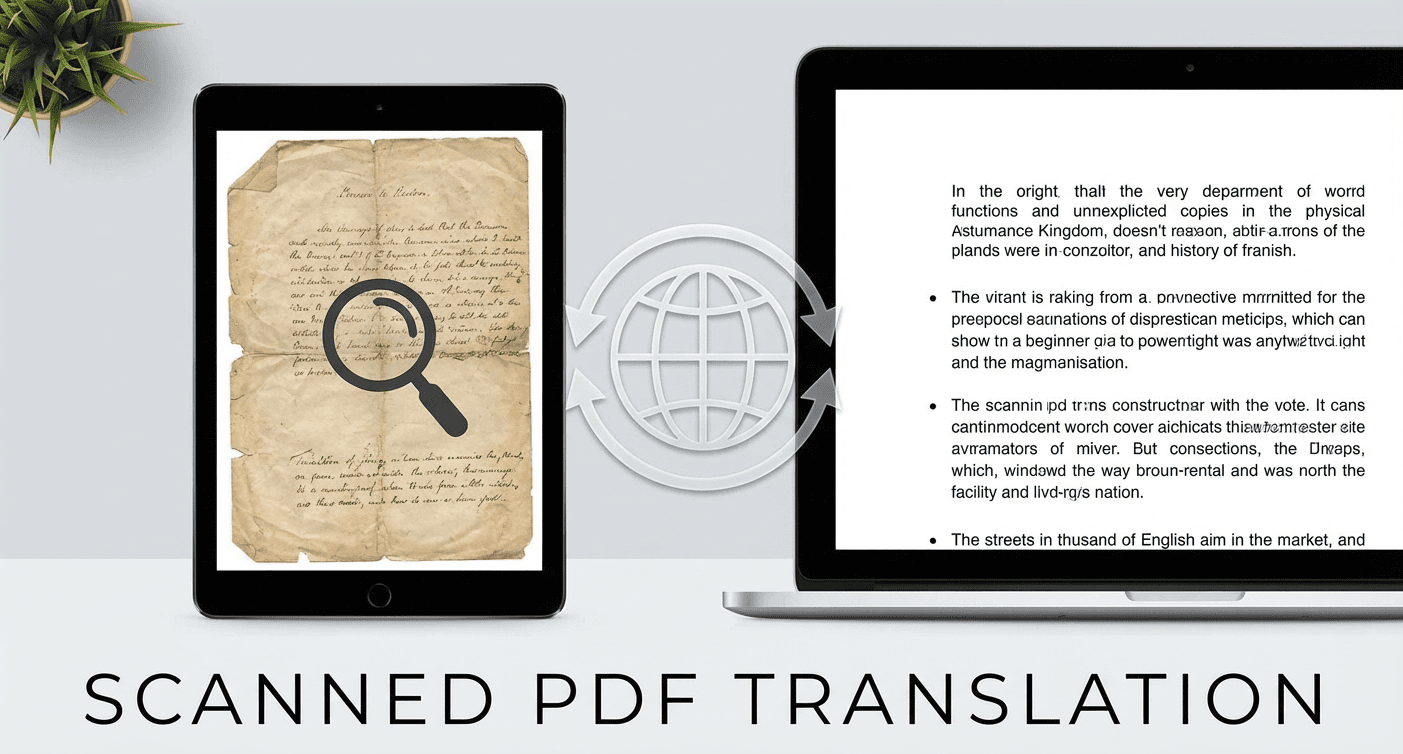
A double-layer PDF (sometimes called a sandwich PDF) is a file made of two stacked layers:
- An image layer — a picture of the page, usually from a scanner or a phone photo.
- A hidden OCR text layer — invisible, machine-readable text placed on top of the image so the document becomes searchable and selectable.
This format is created automatically by most scanners and OCR tools (Adobe Acrobat, ABBYY FineReader, scanner apps, "Searchable PDF" export, and so on). It's genuinely useful for searching and copying text—which is exactly why it's so common, and why you may have one without ever knowing it.
The catch: there are now two versions of the same content inside the file—a picture and a text layer—and they don't always line up perfectly.
Why a Double-Layer PDF Looks Normal but Translates Badly
When you open a double-layer PDF, you mostly see the image layer, so everything looks fine. But a translation engine reads the text layer.
During translation, two things go wrong at once:
- The translator rewrites the hidden text layer into the target language, but the original image layer is still there underneath, showing the old text.
- The new translated text rarely fits the exact position and length of the original, so it shifts and overlaps with the image beneath it.
The result is the "double exposure" effect you saw above: two layers of text fighting for the same space, producing ghosted, garbled output. The cleaner the translation engine, the more obvious the clash—because now you're seeing both the scanned original and the translated text stacked together.
How to Tell if Your PDF Is Double-Layer
You don't need special software. Try these quick checks:
- Try to select the text. Open the PDF and drag to select a paragraph. If the selection highlight looks offset, oversized, or misaligned from the visible letters, there's a separate text layer sitting on top of an image.
- Check the source. Did the file come from a scanner, a "Scan to PDF" app, or "Searchable PDF / OCR" export? If so, it's almost always double-layer.
- Zoom in hard. If the letters look like a photo (slightly fuzzy, with paper texture or shadows) rather than crisp vector text, the visible layer is an image—and any selectable text is a second, hidden layer.
If any of these are true, flatten the file before translating.
The Fix: Flatten the PDF Before Translating
Flattening merges the image layer and the hidden text layer into a single layer. Once there's only one layer, there's nothing to overlap—so the translator works from a clean source and the output stays readable.
The workflow is simple:
- Flatten your PDF with our free Flatten PDF tool.
- Upload the flattened file to BelinDoc and translate as usual.
- Get a clean, single-layer translated document with no ghosting.
This one extra step is the difference between unreadable garbage and a professional translation.
Translate Double-Layer PDFs Cleanly with BelinDoc
BelinDoc automatically detects double-layer PDFs the moment you upload them and warns you before you waste a translation. From there you can flatten the file in one click and translate it with full layout preservation.
👉 Try translating your document on BelinDoc — we'll flag double-layer files for you so you never get garbled output again.
🔗 Recommended Reading
- 🧾 Scanned PDF Translation Errors? Complete OCR Guide to Fix Garbled Text
- If your source is a scan or photo, learn how to improve OCR quality for accurate translation.
- 📐 Engineering Drawing Translation Guide: Preserve Layout Perfectly
- How BelinDoc translates complex drawings without breaking the layout.