Can Claude translate a whole PDF for you?
Yes, with a translation MCP server connected. Add Belin Doc's MCP server to Claude Code, Cursor or another MCP client using an API key, then ask "translate this PDF into Japanese". The assistant uploads the file, submits the job, waits for it to finish and returns a download link to the translated file with its original layout preserved.
Pasting a document into a chat window works for a few paragraphs. With a 40-page contract containing tables or a folder of manuals, the text gets truncated, the layout disappears, and you end up copying the answer back into Word by hand. An MCP server handles translation through a document translation service, while your assistant interprets your request and runs the steps.
This guide covers what the server does, how to connect it, how the assistant handles a translation and which limits to keep in mind.
What a translation MCP server actually does
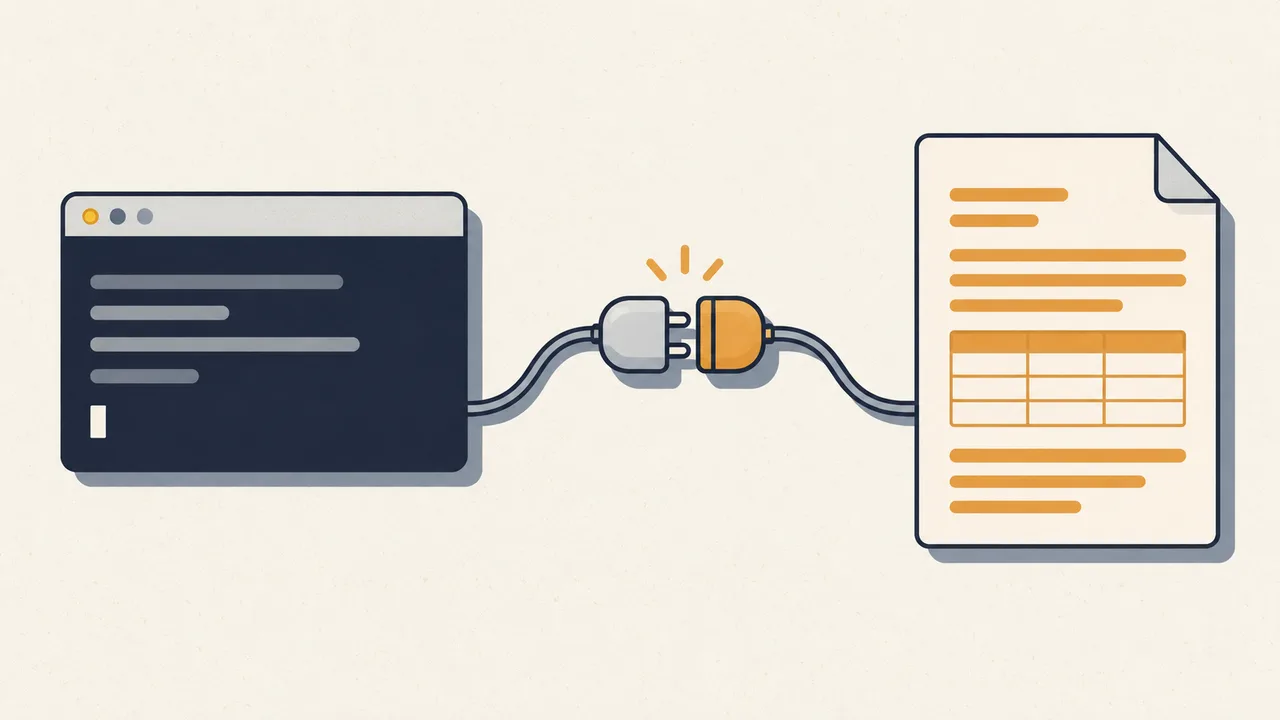
MCP (Model Context Protocol) is a standard way for an AI client to call external tools. A client such as Claude Code or Cursor connects to an MCP server, reads its tool list and decides which tools to call for your request.
Belin Doc's MCP server provides the document and video translation available on belindoc.com through a set of tools. The main document tools are:
| Tool | What it does |
|---|---|
upload_document | Returns a pre-signed upload link and the exact command to upload your file |
translate_document | Submits the translation job with source language, target language and model |
wait_for_translation | Waits for the job and reports progress as it changes |
get_document_translation_result | Returns the download link for the translated file |
get_model_list / get_supported_languages | Lists the models your account can use and the supported languages |
get_account_status | Shows remaining quota and the limits on your plan |
The difference from asking a chatbot to translate is where the work happens. Your client's model calls the tools without rewriting the document itself. The same pipeline used by the web app produces the translated file, keeping tables, figures and formulas in their original positions.
Remote server or local stdio: which setup to pick
There are two ways to connect. Both provide the same tools through the same account.
Remote (Streamable HTTP). Your client connects to https://mcp.belindoc.com/api/mcp and sends your API key in an Authorization: Bearer header. Nothing is installed on your machine. This suits clients that support a remote URL and custom headers, such as Claude Code and Cursor.
Local (stdio). Your client starts the server on your machine with uvx belindoc-mcp, and the key goes in an environment variable instead of a header. This requires uv and is the fallback for clients where remote URLs or headers are awkward to configure, including Claude Desktop.
If your client supports remote servers, start there: there is less to install and nothing to update.
How to set up the MCP server in Claude Code and Cursor
This two-minute video walks through the whole setup; the written steps follow below it.
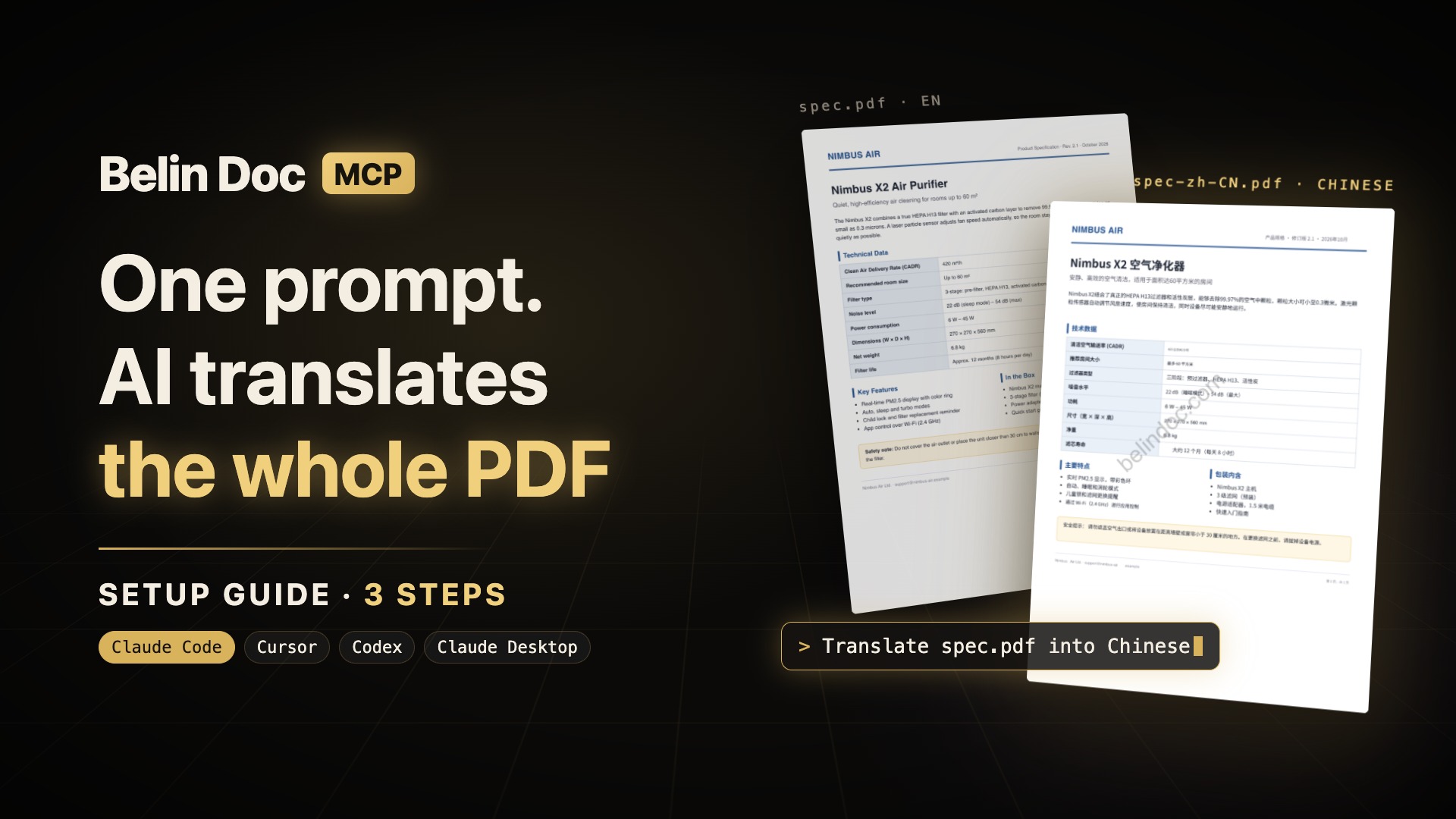
Belin Doc MCP setup guide: let AI translate a whole PDF in 3 steps
Step 1: Create an API key
Sign in at belindoc.com, open the avatar menu in the top right and go to the Developer Center. Create a key and copy it immediately: the full value is shown only once, and only a hash is stored afterwards. An account can hold five keys by default. Each key can have an expiry date and an IP allowlist.
Step 2: Add the server to your client
For the remote setup, add this block to your client's MCP config (.mcp.json in Claude Code, .cursor/mcp.json in Cursor) and put your key after Bearer:
{
  "mcpServers": {
    "belindoc-mcp": {
      "type": "http",
      "url": "https://mcp.belindoc.com/api/mcp",
      "headers": {
        "Authorization": "Bearer <your API key>"
      }
    }
  }
}
For the local setup in Claude Code, run:
claude mcp add belindoc-mcp \
  -e BELINDOC_API_KEY=<your API key> \
  -- uvx belindoc-mcp
The MCP page also has configurations for Claude Desktop, Codex, Windsurf and VS Code. Config file paths and top-level keys vary by client and change over time, so check your client's documentation if a block does not load.
Step 3: Check the connection
Ask the assistant a question that costs nothing, such as "How many pages do I have left this month?" It will call get_account_status. If it returns your quota, the key works and the server is connected.
Step 4: Ask for a translation
Point the assistant to a file and describe what you want: "Translate contracts/nda.pdf into German." If you have not specified a model, it will ask which one to use. It then uploads the file, submits the job and waits for completion before returning a download link.
What happens behind "translate this PDF"
Knowing the sequence helps explain most things that can go wrong.
- Upload.
upload_documentreturns a short-lived signed link and a ready-made upload command. The assistant runs the command on your machine to send the file. The server never reads files from your computer on its own. - Scan check. Before submitting a PDF, the server checks whether it is a scan. Scanned PDFs go through OCR: each OCR page counts against your page quota, and free accounts also have a monthly OCR page limit. The assistant is told which path each file took.
- Submit.
translate_documentstarts the job with your chosen languages and model. You can also pass a glossary ID from your Belin Doc term library to specify how names and terms should be translated. - Wait.
wait_for_translationreturns whenever progress changes, allowing the assistant to report how far along the translation is. - Download.
get_document_translation_resultreturns a signed download link. The query string after?is the signature, so use the link exactly as given.
Because the assistant runs a command in step 1, a client with terminal access, such as Claude Code, Codex or Cursor's agent, offers the smoothest workflow. Without terminal access, you can still check quota, list jobs and fetch results, but uploading a local file requires running that command somewhere.
What works well over MCP, and what to check
MCP is useful when translation is part of a larger task: translating every PDF in a folder, translating a spec and summarising the differences between versions, or checking a batch of jobs you started earlier. You describe the outcome once, and the assistant makes the tool calls in sequence.
Before relying on it for important documents:
- Choose the model deliberately. The available models depend on your account. For a contract or technical manual, tell the assistant which model to use rather than leaving it to guess. Our model selection guide explains which models suit different document types.
- Check the OCR note for scans. A scanned PDF translated without OCR comes out blank, and OCR pages count against your page quota (free accounts also have a monthly OCR limit). Read the assistant's report to see which path each file took.
- Review the translated file, not the chat summary. The assistant's message confirms that the job finished. Open the file and spot-check names, numbers and tables as you would with any machine translation.
Frequently asked questions (FAQ)
Which file types can I translate through the MCP server?
PDF, DOCX, PPTX, XLSX, TXT and EPUB, plus PNG and JPG images. Each image counts as one page and always goes through OCR.
Is the MCP server billed separately from the web app?
No. MCP accesses the same account. Calls use the same page and video quotas and model coefficients as the web app, with no separate MCP pricing.
Does it work with Claude Desktop?
Claude Desktop can connect through the local stdio setup. Uploading a local file requires the assistant to run an upload command, so a client with terminal access, such as Claude Code, is more reliable for translating files from your disk.
What if my API key leaks?
Disable or delete it in the Developer Center immediately, then create a new one. You can also restrict a key to an IP allowlist so only your own machines can use it.
Can I translate videos through MCP too?
Yes. The same server offers video translation and subtitle rewriting tools. Because these jobs use quota, submission requires two-step confirmation: the assistant shows the cost options and submits only after you choose one.
Where can I find the full API instead of MCP?
To call the translation service from your own code rather than an AI client, see the API documentation. It covers the REST endpoints, which use the same API keys.