For cross-border construction, manufacturing, and electrical projects, DWG translation and DXF translation have always been painful. The client hands you a stack of native AutoCAD files, you just want to read the annotations and technical notes quickly, and yet most translation tools only accept PDF. The usual workaround — export DWG to PDF, translate the PDF, manually copy text back into CAD — burns half a day.
You don't need to do that anymore. BelinDoc's Blueprint Translator now supports native DWG / DXF uploads (and ZIP bundles for batch submission). You upload, the system parses the text, AI translates it, and the output keeps the title block, layers, block attributes, and leader positions exactly where they were.
This guide covers why DWG/DXF translation is harder than PDF translation, how native CAD translation differs from the "export-to-PDF" workaround, and the end-to-end BelinDoc flow.
Why is DWG / DXF translation harder than regular document translation?
A CAD file isn't a plain text container — text lives in many less-than-obvious places:
- Title block text: drawing number, project name, company, revision, approval signatures — all stored as block attributes. Generic translation tools skip them entirely.
- Dimension and leader text: bound to geometric entities. The translated text must stay anchored, or the drawing is unusable.
- Layer names: in many engineering standards, the layer name itself is a meaningful term (e.g., "Load-Bearing Wall," "Supply Pipe," "Neutral Line") and needs translation (or a bilingual copy) for international deliverables.
- Xrefs and external blocks: a single drawing set is often several DWG/DXF files zipped together — you need batch handling.
- Dense terminology: from "tolerance fit" and "section view" to abbreviations like "CB" / "MCCB." A single wrong translation can derail construction.
Once you flatten DWG into a PDF and translate that, all the structural information collapses into an image. Title blocks re-flow, annotations drift, block attributes are lost — not maybes, near-certainties.
Three common approaches to DWG/DXF translation
| Approach | Pros | Cons | Best for |
|---|---|---|---|
| Manual redraw + translation | Fully controlled terminology and layout | Very expensive, hours per drawing, unpredictable schedule | Final stamped deliverables |
| Export to PDF, then translate | Mature tooling, works with any PDF translator | Title block / annotation misalignment; can't write back into the CAD source | Read-only comprehension |
| Native DWG/DXF translation (BelinDoc) | Reads block attributes and annotation text directly; preserves layers and layout; seconds to minutes | Rare abbreviations may need a manual touch-up | Daily drawing review, cross-border bidding, site handover, supplier communication |
For most engineers, the most frequent need is simply "understand the drawing fast" — option three wins on overall efficiency.
The native DWG/DXF translation flow with BelinDoc
Three steps, no learning curve:
Step 1: Upload your DWG / DXF file
Open /translate/blueprint-translator, click the upload area, and pick a local .dwg, .dxf, or .zip.
- Single drawing: drag in a DWG / DXF
- Drawing set: bundle the CAD files into one ZIP; BelinDoc parses each file in the archive
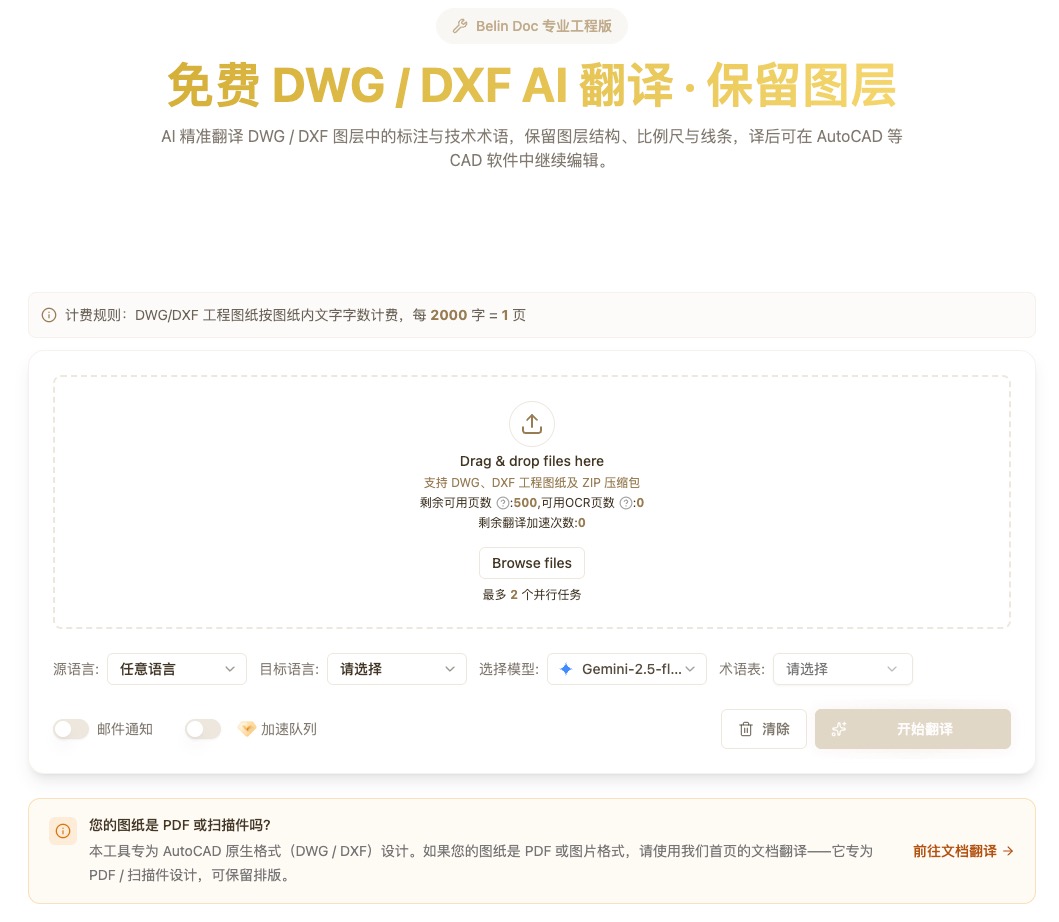
BelinDoc parses each file independently and shows one of three states:
- Parsing: extracting text entities from the drawing
- N characters detected: translatable text count is ready — you see the billing basis up front
- Parse failed: rare (encrypted file, malformed geometry, etc.); the UI explains why
Step 2: Pick a target language and a translation model
Source language is auto-detected. Target language is chosen from the full supported list (9+ languages including Chinese, Japanese, Korean, German, French, Russian, Arabic, Traditional Chinese). The model selector lets you pick an engine tuned for your document type — for engineering drawings, choose one that holds up well on technical terminology.
If you're not sure which model to pick, two companion reads:
Step 3: Translate & download
Hit "Translate." After the progress bar finishes, download either the translated CAD file or a side-by-side comparison view. Dimension annotations, legends, and technical notes stay in their original positions, and title-block fields are translated through block attributes — not repainted on top.
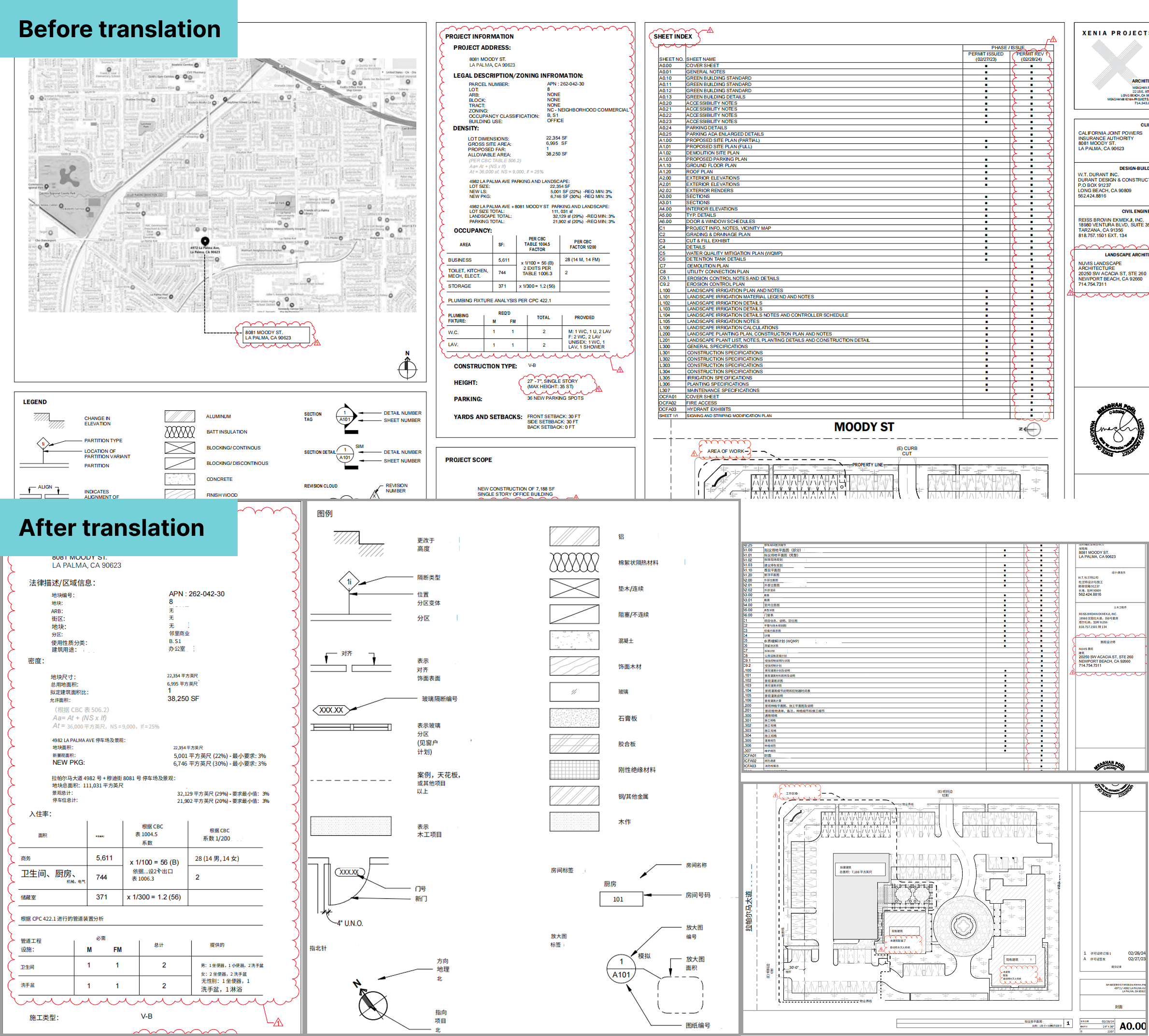
If you only have a scanned PDF and no DWG source, the PDF pipeline with OCR still works — see Engineering Drawing Translation Guide: Preserve Layout for that path.
Four tips to improve DWG/DXF translation quality
The AI floor is already good — these habits raise the ceiling:
- Run
PURGEbefore upload: strip unused blocks, layers, and text styles. Less junk text to parse means faster output and lower cost. - Switch SHX fonts to TTF: some Chinese and Japanese drawings use SHX single-stroke fonts that are harder to OCR reliably. Switching to TTF (e.g., SimSun, MS Mincho) before export improves recognition.
- Publish a local glossary: projects often invent abbreviations (e.g., "GX1" for a specific rebar spec). A glossary page at the start of the drawing gives the model reliable context.
- Double-check critical dimensions by hand: AI handles numbers well, but scan decimals and tolerance bands (±0.05 vs ±0.5) with your eyes before sending to the site.
Typical use cases
- Architectural construction drawings (DWG): English plans → Chinese site-handover set, with axis labels, room names, and material callouts preserved.
- Mechanical assembly drawings (DXF): Japanese / German source → Chinese, with BOM tables and tolerance notes translated in line.
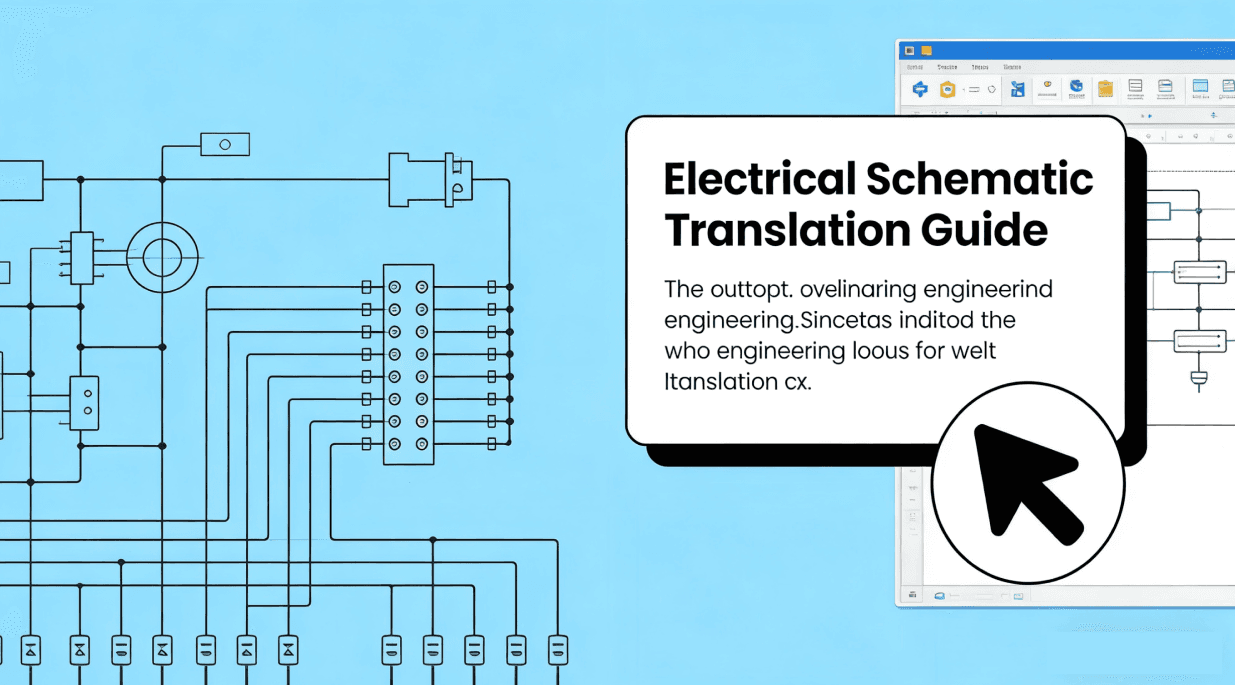
- Electrical schematics: multi-language control-cabinet drawings, with device tags and function notes staying next to the right components.
- Bid packages (ZIP): submit the entire bidding drawing set at once; get the full translated package in minutes.
Summary and pricing
For engineers, project managers, and BIM teams that deal with multilingual CAD drawings on a regular basis, native DWG/DXF translation compresses what used to take a day into under twenty minutes, while keeping the translated text precisely where it belongs in the CAD file.
BelinDoc bills by character count / credits, with a low entry point; teams can share credits at the organization level.
👉 Try it now: Open Blueprint Translator 👉 See pricing: Pricing
FAQ
Q: Does BelinDoc now translate DWG and DXF files directly?
A: Yes. Upload .dwg, .dxf, or a .zip bundle of CAD files on the Blueprint Translator page. Each file is parsed for character count, translated, and the output preserves the original layers and block attributes.
Q: Can I still edit the translated DWG / DXF in AutoCAD?
A: Yes. The output is a CAD-compatible drawing. Text is replaced at the block-attribute and annotation-object level, so you can open the file and edit, plot, or print it like any other drawing.
Q: I have a ZIP with dozens of DWG files — can I translate them all at once?
A: Yes. Upload the whole ZIP. BelinDoc parses and translates each file individually; progress and character counts are shown per file, and a single failure doesn't block the others.
Q: What if I only have a scanned PDF, no DWG source?
A: Still translatable. BelinDoc ships with OCR that recognizes text in scanned PDFs and writes the translation back into position. Details in the Engineering Drawing Translation Guide.
Q: How is engineering drawing translation priced?
A: By detected character count (or the equivalent credits) — substantially cheaper than traditional human translation agencies. See the Pricing page for details.