



Introduction: Why Does Translation Result in Garbled Text?
No matter where you are in the world, handling international business often leads to this frustrating situation:
You receive an old scanned contract or a paper document photographed by a client with a mobile phone. When you upload it to a translation tool with high expectations, the results are disappointing—the translation is full of garbled text (like □□□ #%), or words are misspelled everywhere (for example, System being recognized as 5y5tem).
This is usually not a problem with the translation model, but rather a failure in the Optical Character Recognition (OCR) process.
At BelinDoc, we help users worldwide process tens of thousands of documents daily, and we deeply understand how "source document quality" decisively affects translation results. Today, we'll share how simple preprocessing can significantly improve the translation quality of scanned documents.
1. Core Principle: How Machines "Read" Scanned Documents
To solve the garbled text problem, you first need to understand the computer's perspective. In the eyes of a computer, PDFs fall into two categories:
- Native PDFs: These documents are typically exported directly from Word or Google Docs. Computers can directly read the text encoding, resulting in extremely high translation accuracy.
- Scanned PDFs: These documents are essentially "images". Translation engines cannot directly read the text and must first perform OCR (extract text from images) before translating.
If the scanned document is blurry, poorly lit, or has creases, the OCR engine will "misread" letters, causing subsequent translations to completely deviate from the original meaning.
2. Three Universal Tips to Improve Recognition Rate
In conventional document processing, if the source file quality is poor, you can try these three steps to optimize image quality. These methods work for documents in any language.
1. Enhance Contrast: Black and White Clarity is Most Important
OCR engines prefer "white paper with black text." Many mobile phone photos have gray backgrounds or uneven lighting, resulting in blurry text edges.
- Recommended Action: Use mobile scanning apps or image editing software to set the image filter to "black and white document" or "binarization" mode. This removes gray backgrounds and makes text outlines clearer.
2. Correct Skew: Maintain Horizontal Alignment
If the shooting angle is tilted, OCR might incorrectly concatenate the latter part of the first line with the front part of the second line, disrupting the sentence's logical structure.
- Recommended Action: Use tools with "perspective cropping" functionality to correct trapezoidal documents into rectangles, ensuring text lines are horizontal.
3. Reduce Visual Interference: Remove Watermarks and Shadows
- Watermark Interference: Dark watermarks overlaid on text can seriously interfere with recognition. If possible, request the original document without watermarks from the sender.
- Handwriting Interference: Current AI has high recognition rates for neat printed text but still struggles with messy handwriting.
3. Ultimate Solution: Belin Doc's AI Automatic Enhancement Technology
If you find manual processing too cumbersome, Belin Doc has prepared an automated solution for you.
Advantages of Belin Doc Scanned PDF Translation
To provide the most convenient experience for global users, we've integrated an AI visual enhancement module into our latest translation engine. When you upload scanned documents, our backend automatically performs these operations:
- Smart Denoising: Algorithms automatically remove noise, shadows, and creases from scanned documents.
- Layout Reconstruction: Precisely identifies headers, footers, tables, and body text areas to prevent format confusion after translation.
- Large Model Context Error Correction: This is Belin Doc's core advantage. Even if OCR incorrectly recognizes
catascut, our translation model will automatically correct it back tocatbased on context and translate it correctly.
Belin Doc Scanned PDF Translation Performance - Real Test Examples:
Belin Doc Scanned PDF Translation (Difficulty: Normal)

Belin Doc Scanned PDF Translation - Tables (Difficulty: Medium)
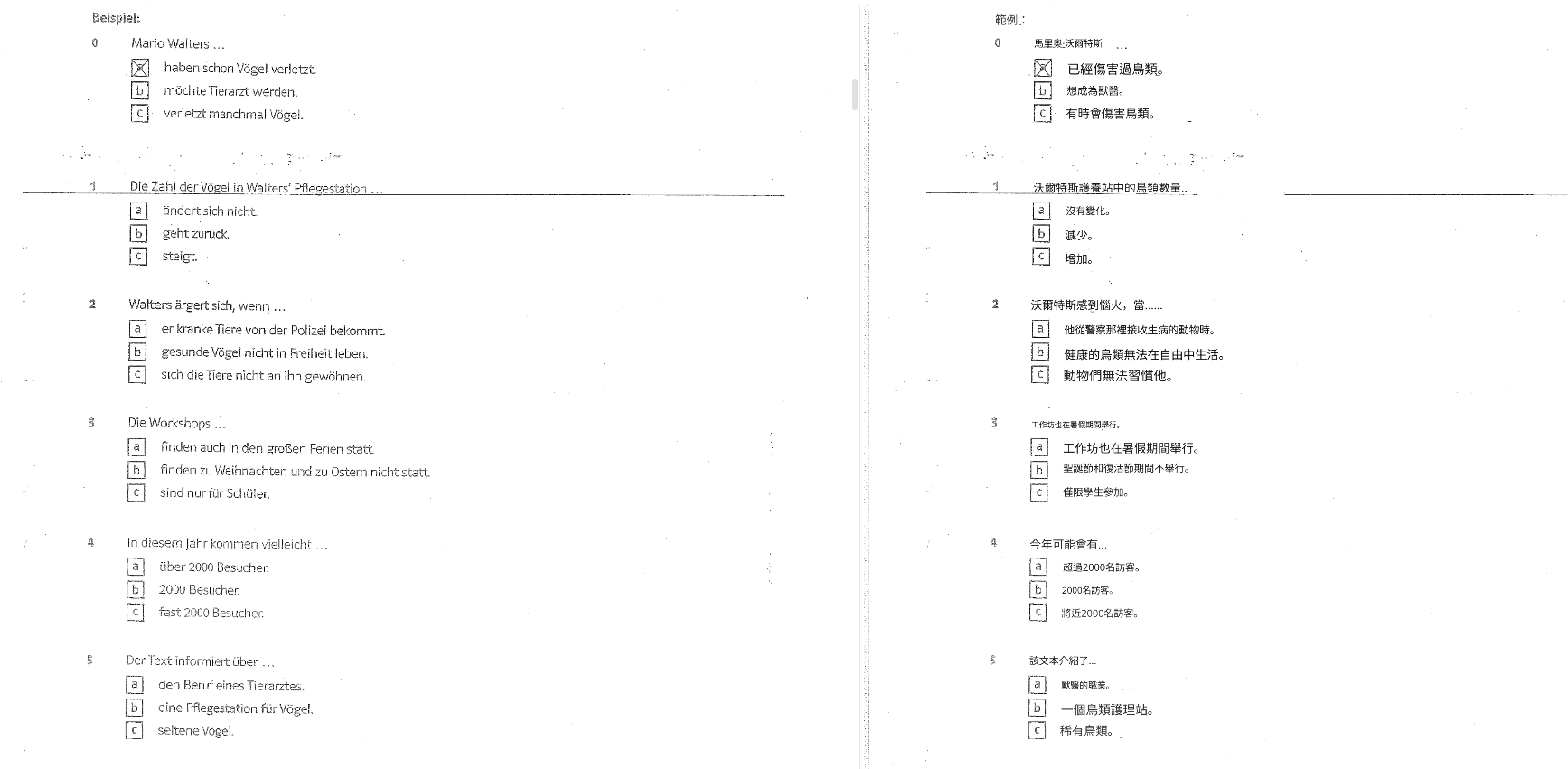
Belin Doc Scanned PDF Translation - Complex Format (Difficulty: Extremely High)
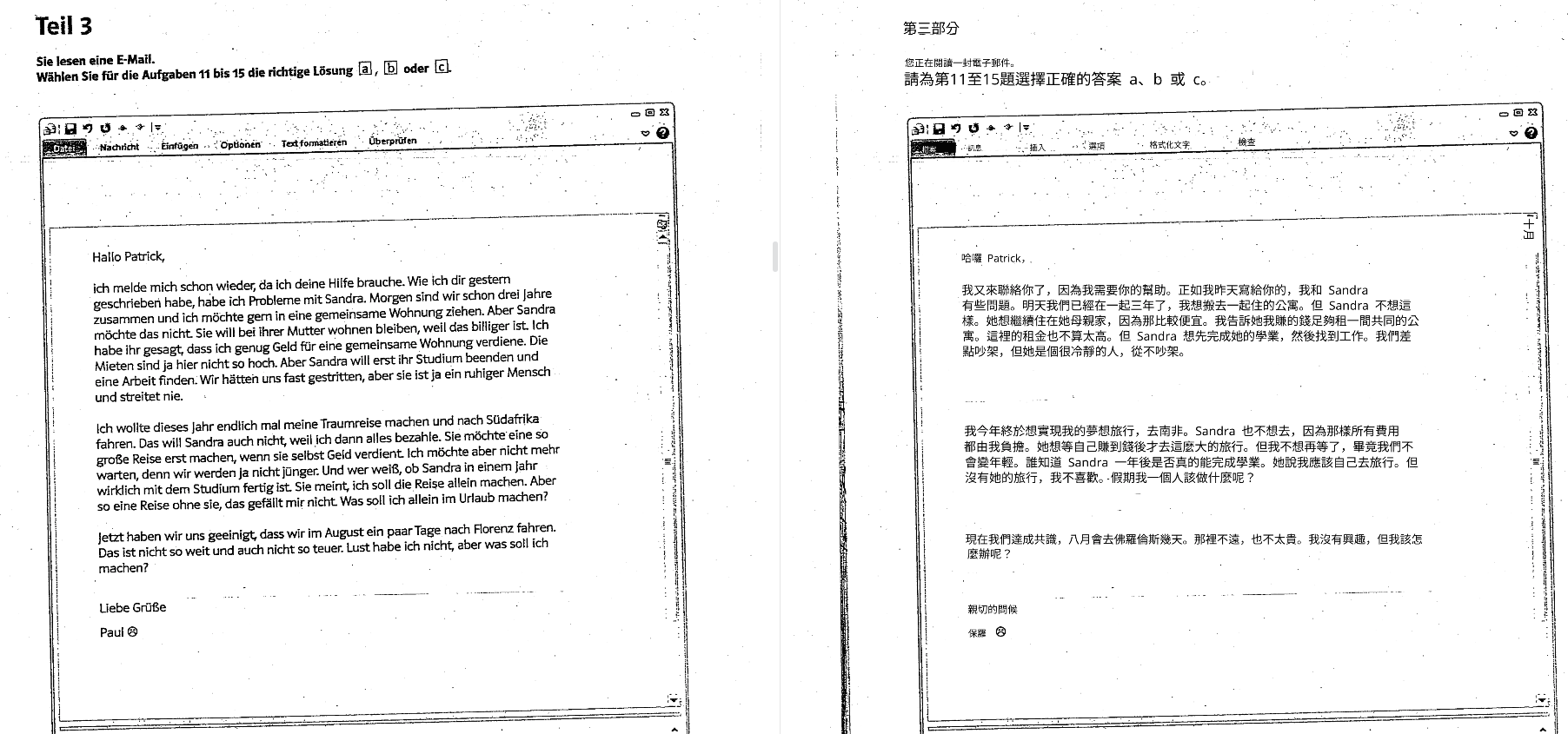
Performance Data: According to our internal testing, for ordinary scanned documents above 300dpi, Belin Doc's direct recognition accuracy has reached 98.5%. This means in most cases, you can upload directly without any manual intervention.
4. Pitfall Guide: Which Documents Should You Give Up On?
Although technology continues to advance, the following two types of documents remain current industry challenges. We recommend finding alternative versions before translation:
- Extremely Blurry Thumbnails: Such as chat screenshots that have been compressed multiple times, with severe pixel loss that AI cannot restore.
- Artistic Fonts and Calligraphy: Highly personalized handwriting or ancient texts still have low OCR recognition rates.
Conclusion
At Belin Doc, we are committed to breaking down language barriers, whether documents exist in digital form or as paper scans.
For most scanned documents, our AI-enhanced OCR already provides near-perfect translation experiences. If you happen to have a difficult PDF to process, why not give it a try right now?
👉 Click here to experience high-definition document translation at Belin Doc
🔗 Recommended Reading
- [Latest Review] 🚀 GPT-5.2 Translation Test: When "Strongest Brain" Meets "Perfect Formatting"
- Learn how Belin Doc combines GPT-5.2 to achieve ultimate translation results.
- [Latest Review] 🚀 Engineering Drawing Translation Guide: How to Precisely Translate PDF/CAD Blueprints While Perfectly Preserving Layout
- Learn how Belin Doc translates complex engineering drawings.